Windows 11 26H2 Update, My Windows Update page has had that little red dot on it for weeks now. Not on my main work laptop I keep that one boring on purpose but on the older Dell I use as a guinea pig for exactly this kind of thing. A couple of months back I flipped it into the Windows Insider Program just to poke around, and that’s how I ended up living with early builds of Windows 11 version 26H2 before most people even know it exists.And honestly, my first reaction was the same one a lot of you probably had with 25H2 last year: “wait, is this even a real update?”
Because it doesn’t look like one. No giant download bar. No hour long install. No “please don’t turn off your PC” screen that makes you nervous about your dinner plans. It just… installs in a few minutes and reboots once. That threw me off the first time, and it’s the first thing I want to clear up before anything else.
Here’s the thing nobody explains well:Windows 11 26H2 isn’t a new operating system. It’s built on the exact same code as 25H2 and 24H2. Microsoft calls the install method an “enablement package,” which is a fancy way of saying most of the features are already sitting on your PC, turned off, and the update just flips a switch.
Think of it like a restaurant that’s been quietly prepping ingredients in the kitchen all year new taskbar options, a reworked Start menu, updated search and then one night they just add it all to the menu at once. You’ve technically had some of those ingredients in your fridge for months through regular monthly updates. The “update” is just the official announcement.
That’s why, if you’re already on 24H2 or 25H2, a bunch of this stuff will feel familiar. But if you’re coming from an older version, or migrating from Windows 10, it’s going to feel like a genuinely bigger jump.Microsoft hasn’t nailed down an exact release date as I’m writing this, but every signal points to the traditional late September to October window, the same time frame Windows 11 24H2 landed back in October 2024.
My actual experience installing it
Here’s where I’ll admit a mistake. The first time I saw the Insider build was ready, I got a little too excited and installed it on a Friday night without checking one basic thing whether my dock and second monitor setup would behave.
They didn’t. Not badly, just annoyingly my taskbar position setting reset itself after the update, and I spent a confused ten minutes wondering why my monitor arrangement looked “off” before realizing it was just the taskbar, not my displays.
Even with a tiny enable package, check your display and peripheral setup after reboot before you assume everything’s fine. It usually is, but “usually” isn’t “always.”
The actual install itself, though? Genuinely painless. Here’s what it looked like on my end:
Settings > Windows Update showed the option once I was enrolled in the Insider Program’s Dev or Beta channel.
I clicked “Download and install.”
The download was small nowhere near the multi gigabyte size of a real version upgrade.
One restart, maybe four to five minutes total, and I was staring at a slightly refreshed desktop.
Checking winver afterward confirmed the new build number.
That’s it. No drama. If you’ve been dreading this the way you’d dread a full Windows 10 to 11 migration, you can relax a little.
The features that actually changed how I use my PC
I’ve now spent enough weeks with these builds to tell you which changes are genuinely useful versus which ones are just changelog filler.
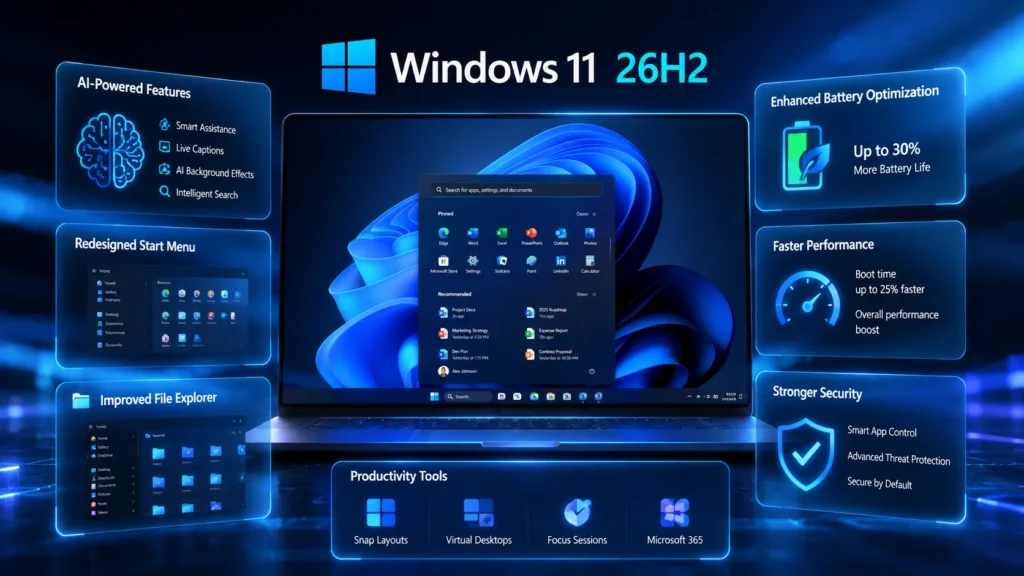
The taskbar can finally move again. This is the one long time Windows users have been asking for since 2021. You can reposition it to different edges of the screen and shrink it down, which matters more than it sounds like if you’re running an ultrawide monitor or you just prefer a top aligned bar like some other operating systems use. I moved mine to a smaller size on the test laptop and genuinely got a bit more usable screen space back. It’s tucked under Settings > Personalization > Taskbar, then into “Taskbar behaviors.”
The Start menu finally bends to your screen instead of the other way around. You get Small, Large, and Automatic size options now, instead of Windows deciding for you based on your resolution and scaling. You can also toggle the Pinned, Recent, and All Apps sections independently, and the old “Recommended” section has been renamed to “Recent,” which is a small thing but makes more sense. If you’ve ever wanted to hide your account name and profile picture from the Start menu for privacy reasons say, during a screen share that option is finally there too.
Ask Copilot in Search. This blends regular file, app, and settings search with AI generated answers right from the same search box. I’ll be honest, I use it more like a smarter Everything Search than an AI companion asking it to find a settings page I can never remember the name of has saved me a few minutes here and there. It’s not magic, but it’s genuinely convenient for the boring, practical stuff.
Administrator Protection which is quietly one of the more important changes in here even though it won’t get much attention. It replaces the old User Account Control model. Instead of your admin account just sitting there with elevated privileges the whole time, Windows creates a temporary elevated session tied to Windows Hello authentication whenever you actually need to make a system level change, then deletes it once the task is done. For anyone who’s dealt with malware that abuses standing admin rights, this closes a real door. You’ll find it under Windows Security > Account Protection, and you do need to turn it on yourself it’s not forced on by default in what I’ve tested.
A modern Run dialog. The little Win+R box is getting its first real visual refresh in decades, with recent commands, app suggestions, and a proper dark mode. It’s optional, toggled in Settings > System > Advanced, and it’s a nice touch for something most of us open a dozen times a day without thinking about it.
Calendar based update pausing. You can now pause updates for a set number of days using an actual calendar picker instead of guessing at a slider, up to 35 days. If you’ve ever had Windows Update interrupt something important at the worst possible time, this alone might be worth the update.
There are smaller touches too touchpad scroll speed controls, accelerated scrolling for long documents, a redesigned Privacy & Security page with quicker access to camera,mic,location status, and a faster initial setup experience that lets you skip installing updates during first boot so you reach your desktop sooner.
Don’t assume you need to reinstall Windows. I have seen people backing up their entire drive like they’re preparing for a factory reset. If your PC already runs 24H2 or 25H2, this is a lightweight switch flip, not a fresh install. Normal update precautions apply, nothing more dramatic.
Don’t expect a visual overhaul. If you’re hoping for a totally new looking Windows, you’ll be a little disappointed. This is about control and customization, not a redesign. Manage your expectations and you’ll actually appreciate what’s here.
Don’t jump onto the Insider Program on your only PC just because you’re impatient, the way I nearly did with a slightly less forgiving setup once before. Test builds can have rough edges. Use a secondary machine or a VM if you want early access, and let your daily driver get the update once it’s stable and official.
Don’t skip checking hardware compatibility if you’re still on Windows 10. 26H2 doesn’t introduce new hardware requirements beyond what 24H2 and 25H2 already need but that also means if your PC couldn’t run Windows 11 before, this update won’t change that math.
Don’t forget Administrator Protection is opt-in. If security features like that matter to you, you’ll need to go flip the switch yourself rather than assuming it’s protecting you automatically the moment you update.
A quick real-world example
A friend of mine runs a small graphic design setup with a vertical ultrawide second monitor. She’d been manually adjusting workarounds for years just to get her taskbar somewhere sensible on that screen. When I showed her the repositioning option on my test laptop, her exact words were “finally, I don’t need a workaround for this.” That’s the kind of update this is less about flashy new AI tricks and more about fixing the small annoyances that have been sitting there since Windows 11 first launched in 2021.
I’ll be honest, I went into testing these builds expecting to be a little bored, the way 25H2 felt like a non event last year. But after actually living with the taskbar flexibility and the Administrator Protection change for a few weeks, I’ve come around to thinking this is one of the more useful “boring” updates Microsoft has shipped in a while. It’s not going to make headlines the way a full redesign would, but it fixes things people have been complaining about since 2021, and that counts for something.
If you’re on 24H2 or 25H2 already, you probably won’t even notice most of this arriving gradually. But when that update prompt finally shows up on your machine this fall, don’t ignore it out of update fatigue. This one’s worth the five minutes.
When is Windows 11 26H2 releasing?
No official date is confirmed yet, but all signs point to a fall 2026 rollout, most likely late September or October, following Microsoft’s usual pattern.
Do I need to back up my PC before installing it?
Normal update hygiene is enough back up important files like you would for any update. You don’t need to treat this like a full reinstall.
Will my current PC support Windows 11 26H2?
If your PC currently runs Windows 11 24H2 or 25H2, yes. No new hardware requirements have been introduced for this release.
What’s actually different from Windows 11 25H2?
Not much on day one for people already updated through monthly patches the taskbar, Start menu, search, and security changes have been rolling out gradually. 26H2 mainly resets your support lifecycle and officially bundles everything together.
Can I get it early?
Yes, through the Windows Insider Program, but I’d only recommend that on a secondary device, not your main computer.
Bilal Ahmad
Bilal Ahmad is the Founder and Editor of GlobalNewsHubz. He writes about technology, world news, government schemes, and digital trends. His goal is to provide readers with accurate, well-researched, and easy-to-understand information using trusted and official sources.